

基础
CSS 规则由两个主要的部分构成:选择器,以及一条或多条声明:
CSS声明总是以分号 ; 结束,声明总以大括号 {} 括起来:
CSS注释以 /* 开始, 以 */ 结束, 实例如下:
一般情况下,优先级如下,高级会覆盖低级:
(内联样式)Inline style > (内部样式)Internal style sheet >(外部样式)External style sheet > 浏览器默认样式
<!DOCTYPE html>
<html lang="en">
    <head>
        <meta charset="UTF-8">
        <meta name="viewport" content="width=device-width, initial-scale=1.0">
        <title>CSS导入方式</title>
        <link rel="stylesheet" href="style1.css">
        <style>
            p{
                color:red;
                font-size: 26px;
            }
            h2{
                color: green;
            }
        </style>
    </head>
    <body>
        <p>这是一个段落</p>
        <h1 style="color: blue;">这是第一个标题,用了内联样式</h1>
        <h2>这是第二个标题,用了内部样式</h2>
        <h3>这是第三个标题,用了外部样式</h3>
    </body>
</html>
h3{
    color: purple;
}
选择器
1.元素(标签)选择器 div、p —— 选中同名标签的所有元素。
2.类选择器 .class —— 选中带该类名的元素。可链式:.card.primary。
3.ID 选择器 #id —— 选中具有该 id 的唯一元素(页面里应唯一)。
4.通配(万能)选择器
*—— 匹配任意元素,常用于重置样式或与属性选择器组合。
5.子代(直接子元素)选择器 .parent > .child —— 只匹配直接子元素。
6.后代选择器 .parent .descendant —— 匹配任意层级的后代。
7.相邻兄弟选择器 A + B —— 选择紧跟在 A 后面的同级元素 B(只影响后面的一个)。
8.通用兄弟选择器 A ~ B —— 选择 A 之后的所有同级 B。
9.伪类选择器(状态/结构) 交互::hover(鼠标放在上面时)、:focus、:active、:visited、:link 结构::first-child、:last-child、:nth-child(n)、:first-of-type 等 注::first-child 是第一个子元素,而 :first-of-type 是同类型中的第一个。
10.伪元素选择器 ::before、::after、::first-line 等 —— 选择元素的虚拟部分。 现代写法用双冒号 ::。
<!DOCTYPE html>
<html lang="zh-CN">
    <head>
    <meta charset="UTF-8">
    <meta name="viewport" content="width=device-width, initial-scale=1.0">
    <title>选择器</title>
    <style>
    /* 元素选择器 */
        h1 {
            color: blue;
        }

    /* 类选择器 */
    .highlight {
        color: green;
    }

    /* ID选择器 */
    #unique {
        color: red;
    }

    /* 通用选择器 */
    * {
        font-family: 'kaiTi';
    }

    /* 子元素选择器 */
    .father > .son {
        color: orange;
    }
    /* 后代选择器(包括子代) */
    .father p {
        color: purple;
        font-size: larger;
    }
    /* 相邻兄弟选择器(只管后面的) */
    h4 + p {
        background-color: yellow;
    }
    /* 伪类选择器 */
    #element:hover {
        background-color: brown;
    }
    </style>
    </head>
    <body>
        <h1>元素选择器</h1>
        <h2 class="highlight">类选择器 </h2>
        <h2>另一个类选择器</h2>
        <h3 id="unique">ID选择器</h3>
        <div class="father">
            <p class="son">这是一个子元素选择器</p>
            <div>
                <p class="grandson">这是一个后代选择器</p>
            </div>
        </div>
        <p>前段落</p>
        <h4>相邻兄弟选择器</h4>
        <p>后段落</p>
        <h5 id="element">伪类选择器</h5>
        <h5>对比</h5>
    </body>
</html>
区块
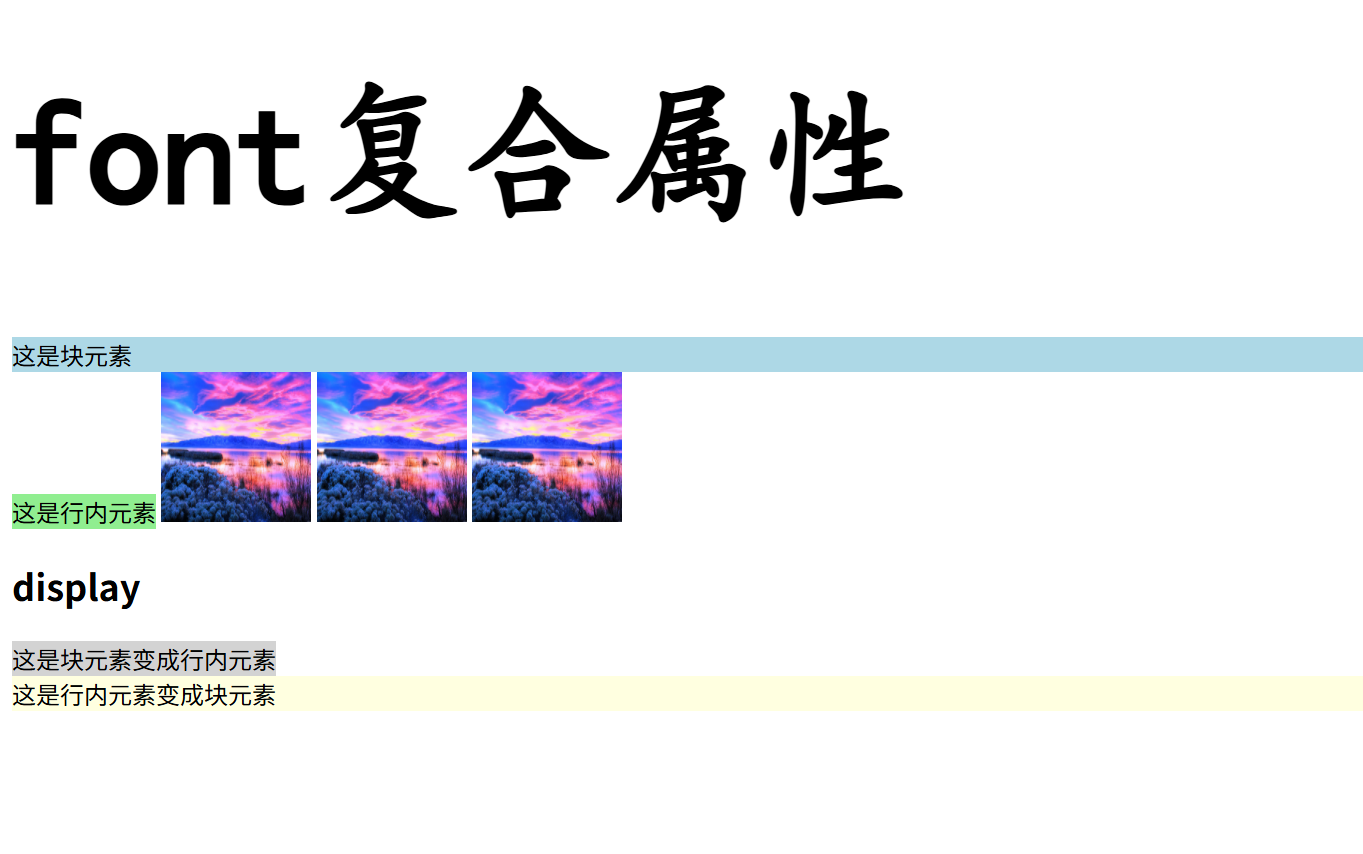
块元素:独占一行,默认宽度100%,可设置宽高和完整盒模型(margin/padding/border全方向生效),能包含块级和行内元素,常见如div、p、h1。 行内元素:同行显示,宽高由内容决定不可直接设置,垂直方向margin/padding不推挤布局,只能包含文本或其他行内元素,常见如span、a、strong。 行内块元素:同行显示但可独立设置宽高,拥有完整盒模型(margin/padding/border全方向生效),能包含任意元素,通过display:inline-block实现,常见如img、input。
(font时复合属性,可以一次性部署多个样式,即可以输出字体属性,font: [加粗] [字号] [行高] [家族];)
<!DOCTYPE html>
<html lang="zh-CN">
<head>
    <meta charset="UTF-8">
    <meta name="viewport" content="width=device-width, initial-scale=1.0">
    <title>区块</title>
    <style>
        .block {
            background-color: lightblue;
        }
        .inline {
            background-color: lightgreen;
        }
        .inline-block {
            background-color: lightcoral;
            width: 100px;
            height: 100px;
        }
        .div-to-inline {
            display: inline;
            background-color: lightgray;
        }
        .inline-to-block {
            display: block;
            background-color: lightyellow;
        }
    </style>
</head>
<body>
    <h1 style="font: bold 100px 'KaiTi';">font复合属性</h1>
    <div class="block">这是块元素</div>
    <span class="inline">这是行内元素</span>
    <img src="R.jpg" alt="图片" class="inline-block">
    <img src="R.jpg" alt="图片" class="inline-block">
    <img src="R.jpg" alt="图片" class="inline-block">
    <h2>display</h2>
    <div class="div-to-inline">这是块元素变成行内元素</div>
    <span class="inline-to-block">这是行内元素变成块元素</span>
</body>
</html>
盒子模型
CSS 盒模型本质上是一个盒子,封装周围的 HTML 元素,它包括:边距,边框,填充,和实际内容。
盒模型允许我们在其它元素和周围元素边框之间的空间放置元素。
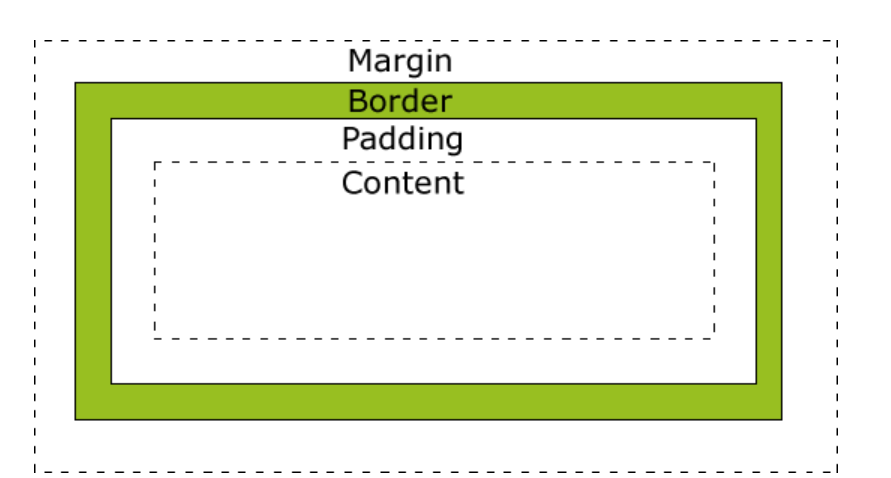
- Margin(外边距) - 清除边框区域。Margin 没有背景颜色,它是完全透明
- Border(边框) - 边框周围的填充和内容。边框是受到盒子的背景颜色影响
- Padding(内边距) - 清除内容周围的区域。会受到框中填充的背景颜色影响
- Content(内容) - 盒子的内容,显示文本和图像
text-align: center; /* 文字水平居中 /
line-height: 内容区高度; /* 文字垂直居中 */
| 盒子区域 | CSS 属性 | 作用 |
|---|---|---|
| 内容区域 | width/height |
显示文字/图片的实际区域 |
| 内边距 | padding |
内容与边框之间的透明区域 |
| 边框 | border-* |
围绕内边距的装饰边框 |
| 外边距 | margin |
盒子与其他元素的透明间隔 |
<!DOCTYPE html>
<html lang="zh-CN">
    <head>
    <meta charset="UTF-8">
    <meta name="viewport" content="width=device-width, initial-scale=1.0">
    <title>盒子模型</title>
    <style>
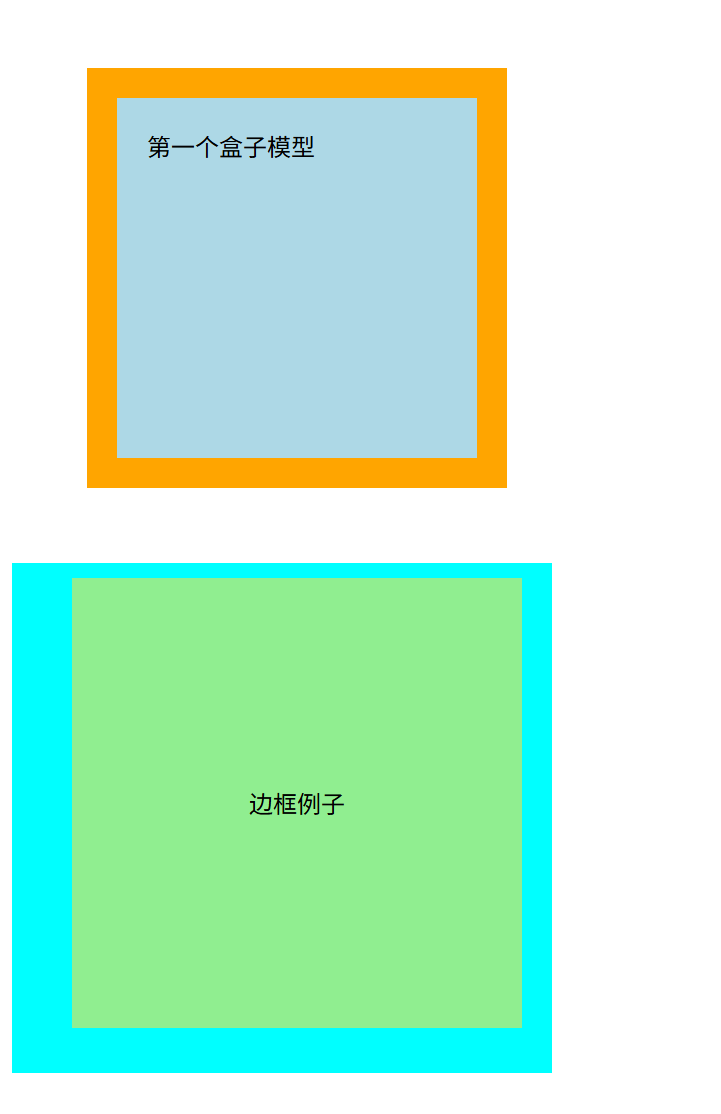
        .demo {
            background-color: lightblue;
            width: 200px;
            height: 200px;
            border: 20px solid orange;
            padding: 20px;
            margin: 50px;
        }
        .border {
            background-color: lightgreen;
            width: 300px;
            height: 300px;
            border-color: aqua;
            border-style: solid;
            border-width: 10px 20px 30px 40px;/* 上 右 下 左 */
            text-align: center; /* 文字水平居中 */
            line-height: 300px; /* 文字垂直居中 */
        }
    </style>
    </head>
    <body>
        <div class="demo">第一个盒子模型</div>
        <div class="border">边框例子</div>
    </body>
</html>
flex盒子
Flexbox(弹性盒布局)是一种一维布局方式:把父元素设为 display:flex 后,子项会沿着“主轴”排布,并能按剩余空间伸缩,还能在主轴/交叉轴上对齐。
- Flex 容器:设了
display: flex|inline-flex的父元素。 - Flex 子项:容器里的直接子元素。
- 主轴 / 交叉轴:由
flex-direction决定(row=水平为主轴,column=垂直为主轴)。 - 起始/结束边:
flex-start/flex-end对应主轴或交叉轴的两端。 - 多行:
flex-wrap: wrap时产生多条 flex line,此时才用得上align-content。
| 属性 | 示例 | 作用 |
|---|---|---|
| flex: <flex-grow> <flex-shrink> <flex-basis> | 1 ⇒ 1 1 0 |
允许增长,按比例占剩余空间 |
2 ⇒ 2 1 0 |
与其它可增长项按“2”的权重分空间 | |
0 0 200px |
不长不缩,基准宽 200px(常做固定列) |
浮动
CSS float 属性定义元素在哪个方向浮动,浮动元素会生成一个块级框,直到该块级框的外边缘碰到包含框或者其他的浮动框为止。
元素的水平方向浮动,意味着元素只能左右移动而不能上下移动。如果有空间的话,它们将彼此相邻
(注意:浮动中标准页面布局将不适用)
<!DOCTYPE html>
<html lang="zh-CN">
<head>
    <meta charset="UTF-8">
    <meta name="viewport" content="width=device-width, initial-scale=1.0">
    <title>浮动示例</title>
    <style>
        .father {
            background-color: yellow;
            border: 2px solid black;
            overflow: hidden; /* 清除浮动 */
        }
        .left{
            width: 50px;
            height: 50px;
            background-color: red;
            float: left;
        }
        .right{
            width: 50px;
            height: 50px;
            background-color: blue;
            float: right;
        }
    </style>
</head>
<body>
    <div class="father">
        <div class="left">左侧浮动</div>
        <div class="right">右侧浮动</div>
    </div>
</body>
</html>

定位
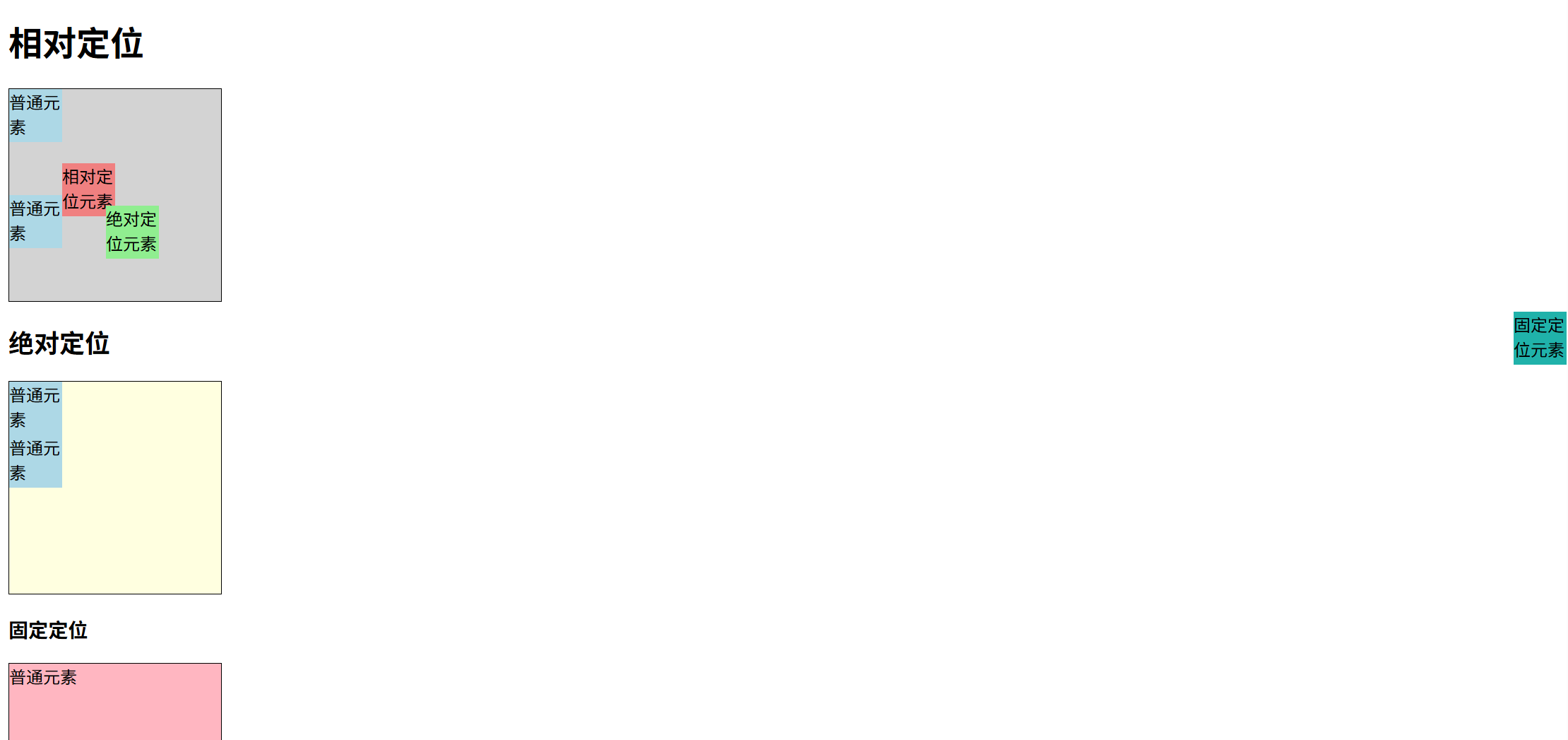
| 定位类型 | 参考系 | 脱离文档流? |
|---|---|---|
relative (相对定位) |
自己原来的位置 | ❌ 不脱离 |
**absolute (绝对定位) |
最近的定位祖先 | ✅ 脱离 |
fixed (固定定位) |
浏览器视口 | ✅ 脱离 |
<!DOCTYPE html>
<html lang="zh-CN">
    <head>
        <meta charset="UTF-8">
        <meta name="viewport" content="width=device-width, initial-scale=1.0">
        <title>定位</title>
        <style>
            .box-normal {
                width:50px;
                height:50px;
                background-color: lightblue;
            }
            .box1 {
                width: 200px;
                height: 200px;
                border: 1px solid black;
                background-color: lightgray;
            }
            .box2 {
                width: 200px;
                height: 200px;
                border: 1px solid black;
                background-color: lightyellow;
            }
            .box3 {
                width: 200px;
                height: 200px;
                border: 1px solid black;
                background-color: lightpink;
                margin-bottom: 100px; /* 为了演示固定定位效果 */
            }
            .box-relative {
                width:50px;
                height:50px;
                background-color: lightcoral;
                position: relative;
                top: 20px;
                left: 50px;
            }
            .box-absolute {
                width:50px;
                height:50px;
                background-color: lightgreen;
                position: absolute;
                left: 100px;
                top: 200px;/* 相对于最近的定位祖先元素定位,认body为爹了*/
            }
            .box-fixed {
                width:50px;
                height:50px;
                background-color: lightseagreen;
                position: fixed;
                right: 0;
                top: 300px;
            }
        </style>
    </head>
    <body>
        <h1>相对定位</h1>
        <div class="box1">
            <div class="box-normal">普通元素</div>
            <div class="box-relative">相对定位元素</div>
            <div class="box-normal">普通元素</div>
        </div>
        <h2>绝对定位</h2>
        <div class="box2">
            <div class="box-normal">普通元素</div>
            <div class="box-absolute">绝对定位元素</div>
            <div class="box-normal">普通元素</div>
        </div>
        <h3>固定定位</h3>
        <div class="box3">普通元素</div>
        <div class="box-fixed">固定定位元素</div>
    </body>
</html>
HTML和css混合
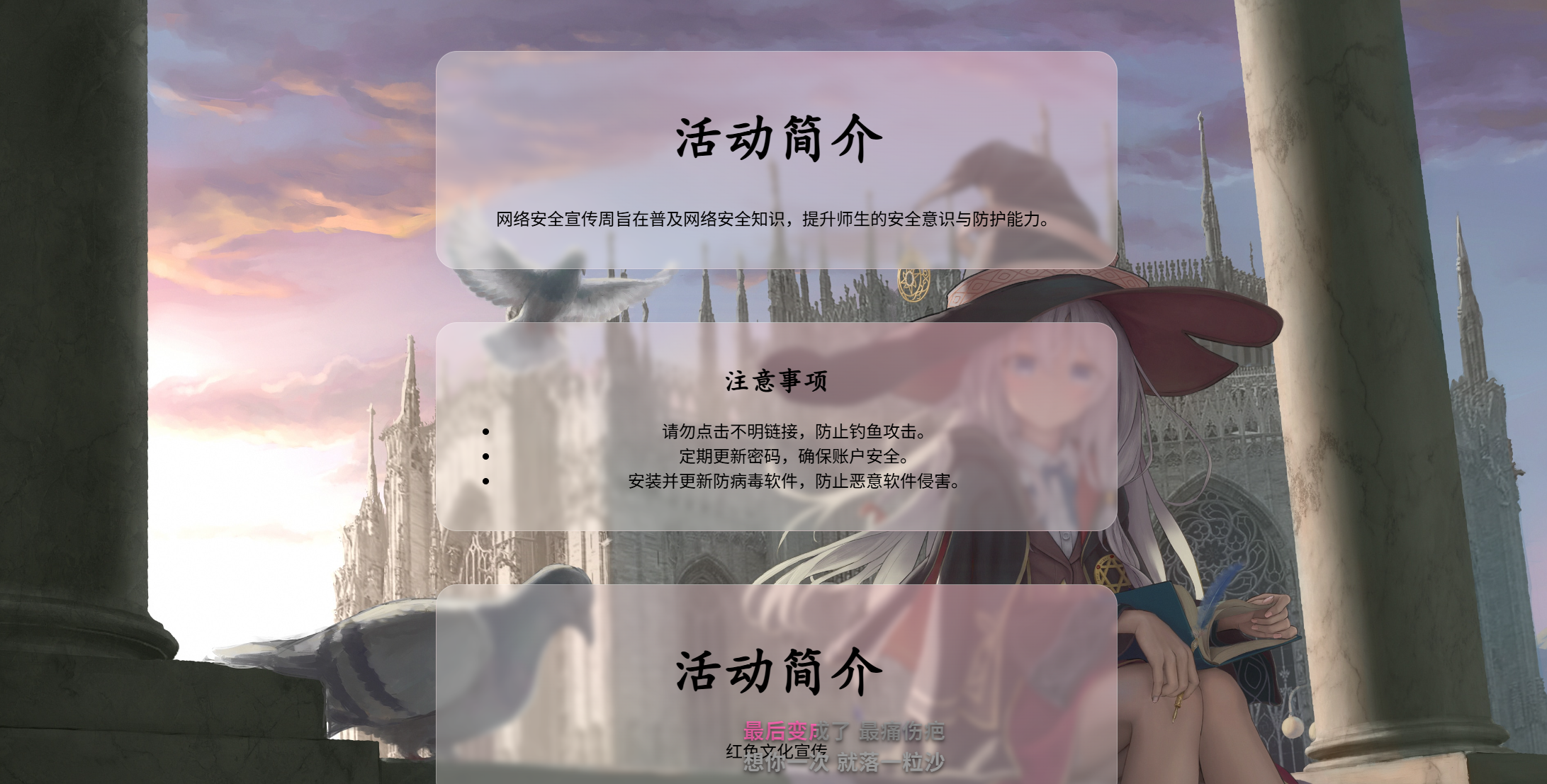
混搭的一个普通静态模型
[!IMPORTANT]
rgba的语法格式是rgba(R, G, B, A)。R、G、B (红、绿、蓝)
- 这三个参数用来决定具体的颜色。
- 它们的取值范围都是 0 到 255 之间的整数。
0表示该颜色通道“关闭”(没有这种颜色的光)。255表示该颜色通道“开到最大”(该颜色的光最强)A (Alpha - 透明度)
- 这是
rgba最关键的部分,它用来控制颜色的不透明度。- 它的取值范围是 0.0 到 1.0 之间的小数。
1.0: 完全不透明 (默认值,颜色是实心的)。0.0: 完全透明 (颜色完全看不见)。0.5: 半透明 (50% 的不透明度)。- 数值越小,颜色就越透明,越能看清它后面的内容。
<!DOCTYPE html>
<html>
<head>
    <meta charset="utf-8" />
    <title>实验一</title>
    <link rel="stylesheet" href="StyleSheet1.css" >
</head>
<body>
    <div class="card">
        <h1>活动简介</h1>
        <p>网络安全宣传周旨在普及网络安全知识,提升师生的安全意识与防护能力。</p>
    </div>

    <div class="card">
        <h2>注意事项</h2>
        <ul>
            <li>请勿点击不明链接,防止钓鱼攻击。</li>
            <li>定期更新密码,确保账户安全。</li>
            <li>安装并更新防病毒软件,防止恶意软件侵害。</li>
        </ul>
    </div>

    <div class="card">
        <h1>活动简介</h1>
        <p>红色文化宣传</p>
    </div>

    <div class="card">
        <h2>学习总结</h2>
        <ol>
            <li>学习中国共产党的历史:梳理不同时期的奋斗历程、重大事件、重要会议与英雄人物,理解历史脉络与精神谱系</li>
            <li>探索理论成果:系统学习马克思主义基本原理及其中国化时代化成果</li>
            <li>不忘记曾经的艰难,不忘记原本的生活</li>
        </ol>
    </div>
</body>
</html>
h1 {
    font-size: 50px; /* font-size: 设置字体的大小。这里将 h1 元素的字体大小设置为 50 像素。 */
    font-family: KaiTi;/* font-family: 设置字体类型。这里指定了 "KaiTi" (楷体)。*/
}

h2 {
    font-size: 25px; /* font-size: 设置字体的大小。这里将 h1 元素的字体大小设置为 25 像素。 */
    font-family: KaiTi; /* font-family: 设置字体类型。这里指定了 "KaiTi" (楷体)。*/
}

.card {
    text-align: center; /* text-align: 设置元素内部文本的水平对齐方式。'center' 表示文本居中对齐。 */
    width: 600px; /* width: 设置盒子的固定宽度。这里卡片的宽度为 600 像素。 */
    /* border: 为元素设置边框。这是一个简写属性。 */
    /* 1px:  边框的宽度为 1 像素。 */
    /* solid: 边框的样式为实线。 */
    /* rgba(255, 255, 255, 0.25): 边框的颜色。这是一个半透明的白色,透明度为25%,用于营造玻璃质感。 */
    border: 1px solid rgba(255, 255, 255, 0.25);
    /* border-radius: 设置元素的圆角。这里将四个角的圆角半径都设置为 20 像素,使卡片外观更柔和。 */
    border-radius: 20px;
    /* padding: 设置元素的内边距,即内容与边框之间的距离。这里在卡片内部创建了 20 像素的空白区域。 */
    padding: 20px;
    /* margin: auto; 这是一个经典的水平居中技巧。当元素有固定宽度时,它会自动计算左右外边距,使其相等。 */
    margin: auto;
    /* margin-top: 单独设置元素的上外边距。这里让卡片距离页面顶部 50 像素。这个设置会覆盖 `margin: auto;` 中的上边距部分。 */
    margin-top: 50px;
    /* box-shadow: 为元素添加阴影效果,以增加立体感。 */
    /* 0:        水平偏移量,0表示阴影在正下方。 */
    /* 8px:      垂直偏移量,8px表示阴影向下偏移8像素。 */
    /* 32px:     模糊半径,数值越大阴影越模糊、越扩散。 */
    /* rgba(97, 115, 150, 0.1): 阴影的颜色。这是一个非常淡的、偏蓝灰色的阴影,透明度只有10%。 */
    box-shadow: 0 8px 32px rgba(97, 115, 150, 0.1);
    /* background: 设置元素的背景。这里使用了径向渐变来创建一种微妙的光晕效果。 */
    /* radial-gradient(): 表示这是一个径向渐变。 */
    /* 1200px 600px:  定义渐变的形状和大小(椭圆形)。 */
    /* at 80% -10%:    定义渐变的中心点位置。80%表示水平位置靠右,-10%表示垂直位置在元素上方,这样可以营造一个从右上角照射过来的高光效果。 */
    /* rgba(255, 192, 203, 0.5) 0%: 渐变的起始颜色,是一个50%透明度的粉色,位置在0%处。 */
    /* rgba(255, 255, 255, 0.3) 40%: 渐变的结束颜色,是一个30%透明度的白色,位置在40%处。40%之后的部分将沿用这个颜色。 */
    background: radial-gradient( 1200px 600px at 80% -10%,rgba(255, 192, 203, 0.5) 0%, rgba(255, 255, 255, 0.3) 40% );
    /* 添加背景模糊(毛玻璃)效果,数值越小越清晰 */
    backdrop-filter: blur(3px);
}

body {
    background-image: url('elaina.jpg'); /* background-image: 设置元素的背景图片。url() 函数用于指定图片的路径。 */
    /* background-position: 设置背景图片的位置。 */
    /* 第一个 'center' 代表水平居中,第二个 'center' 代表垂直居中。 */
    background-position: center center;
    background-repeat: no-repeat; /* background-repeat: 设置背景图片是否重复平铺。'no-repeat' 表示不重复。 */
    /* background-size: 设置背景图片的尺寸。 */
    /* 'cover' 是一个非常有用的值,它会缩放图片,使其完全覆盖整个背景区域,同时保持图片的宽高比。图片多余的部分会被裁剪掉。 */
    background-size: cover;
}
Comments NOTHING